
Turn Your M.2 SSD into a Portable Drive with a Tool-Free USB-C Enclosure
19 October 2026 · by SUPER ADMIN · 6 min read
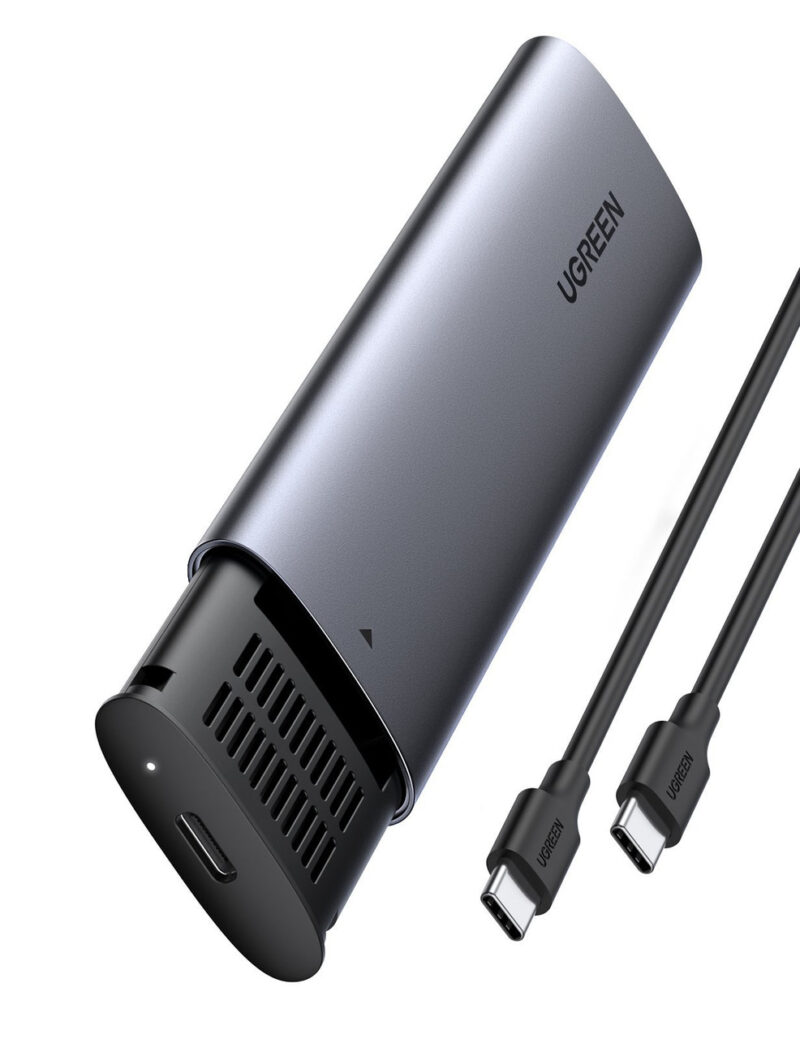
Have an unused M.2 SSD lying around, or need a convenient way to access your files on the go? The NVMe and SATA M.2 SSD Enclosure with USB-C 3.2 Gen 2 offers a practical solution for converting a compatible internal SSD into an external portable storage drive.
Whether you are a student, professional, content creator or business owner, this compact enclosure helps you make better use of your storage devices without investing in an entirely new external SSD.
What Is an NVMe and SATA M.2 Enclosure?
An M.2 SSD enclosure is a protective casing that allows you to connect an internal M.2 solid-state drive to a computer or other compatible device through a USB port.
Instead of installing the SSD inside your computer, you simply place it inside the enclosure and connect it using a USB-C cable. Your compatible SSD can then function as external storage for documents, photos, videos, software projects and backups.
This enclosure supports both NVMe and SATA M.2 SSDs, provided the drive uses a supported interface and connector key.
Key Features and Benefits
1. Supports NVMe and SATA M.2 SSDs
One of the main advantages of this enclosure is its compatibility with two common M.2 storage technologies.
- NVMe SSDs: These use the PCIe interface and can deliver high transfer speeds when supported by the SSD, enclosure and connected device.
- SATA M.2 SSDs: These use the SATA interface and are suitable for everyday file storage, backups and transferring documents.
Having support for both technologies makes the enclosure a versatile choice. However, always confirm that your particular SSD's interface is supported before purchasing.
2. USB-C 3.2 Gen 2 Connectivity
The enclosure features USB-C 3.2 Gen 2 connectivity, which supports theoretical transfer rates of up to 10 Gbps when the enclosure, SSD, cable and host device all support the relevant standard.
This makes it useful for transferring large files, backing up important documents, moving videos and accessing project files.
Actual speeds depend on the SSD, connection, workload and other hardware limitations.
3. Tool-Free Installation
You do not need specialised tools to install a compatible SSD in this enclosure.
The tool-free design makes installation convenient for users who want to reuse an old SSD, upgrade their storage setup or access data from a drive removed from a computer.
4. Supports Multiple M.2 SSD Sizes
The enclosure supports several standard M.2 drive lengths:
- 2230: 22 mm wide and 30 mm long.
- 2242: 22 mm wide and 42 mm long.
- 2260: 22 mm wide and 60 mm long.
- 2280: 22 mm wide and 80 mm long.
The 2280 format is particularly common in laptops and desktop computers, while the shorter formats are found in some compact devices.
5. Supports M-Key and B&M-Key SSDs
The enclosure is designed for compatible M-key and B&M-key M.2 drives. However, connector shape alone does not guarantee compatibility: an M.2 SSD may use either the NVMe/PCIe or SATA interface.
Check the interface of your SSD before installation to ensure it works with the enclosure.
How to Use the M.2 SSD Enclosure
Getting started is straightforward. Follow these steps to turn your compatible internal SSD into external storage.
Step 1: Check Your SSD
Before installing the drive, identify its interface, key type and physical size.
Check the label, product specifications or your computer's documentation to determine whether it is an NVMe or SATA M.2 SSD.
Important: Do not assume that every M.2 SSD is compatible simply because it fits physically.
Step 2: Open the Enclosure
Open the enclosure according to its design. Since it is tool-free, you should not need a screwdriver for normal installation.
Handle the SSD carefully and avoid touching its exposed electrical contacts.
Step 3: Insert the SSD
Align the SSD's connector with the enclosure's slot and insert it gently at the appropriate angle. Secure it using the enclosure's supplied tool-free retention mechanism.
Do not force the SSD into the connector. If it does not fit correctly, check the drive's key type and orientation.
Step 4: Close the Enclosure
Secure the casing according to the manufacturer's instructions. Make sure the SSD is seated properly and that the enclosure is fully closed.
Step 5: Connect It to Your Device
Connect the enclosure to your computer using the appropriate USB-C cable.
Depending on the device and cable, a compatible USB-C-to-USB-A connection may also be possible.
Your computer should detect the drive if it is compatible and functioning correctly.
Step 6: Access Your Files
Open your computer's file manager to locate the external drive.
- On Windows, check File Explorer.
- On macOS, check Finder.
- On Ubuntu or another Linux distribution, check the file manager for the mounted drive.
If the SSD is new, it may need to be initialised, partitioned and formatted before use.
Warning: Formatting or initialising a drive can erase existing data. If the SSD contains important files, do not format it when prompted. Check the drive's condition and contents first.
Step 7: Safely Disconnect the Drive
When you finish using the enclosure, eject or safely remove the drive through your operating system before unplugging it. This helps reduce the risk of data corruption.
Practical Ways to Use an M.2 SSD Enclosure
Here are some everyday situations where this device can be useful.
1. Reuse an old laptop SSD
If you upgrade your laptop to a larger SSD, you can place the old compatible drive in the enclosure and continue using it for storage.
2. Back up important files
Store copies of work documents, photographs, videos and other important files on an external SSD. For essential data, maintain another backup as well.
3. Transfer large files
Move project folders, media files, software development projects and other large files between compatible computers.
4. Recover files from an old computer
If your old computer no longer works but its SSD is intact, you may be able to access its files by installing the drive in the enclosure. Encryption, drive damage and operating-system permissions may affect access.
5. Create portable work storage
Carry your documents and projects between your home, office and school without keeping everything on your computer's internal drive.
Is This Enclosure Right for You?
This product is a useful option if you want a reusable, portable storage solution and already have a compatible M.2 SSD.
It is particularly suitable for people who upgrade laptops, work with large files, need convenient backups or want to repurpose an unused SSD.
Before buying, confirm your SSD's interface, physical size and key type. Also remember that the enclosure does not include additional storage capacity by itself; the SSD is a separate component unless the seller explicitly states otherwise.
Get More Value from Your Storage
An NVMe and SATA M.2 enclosure is a simple way to make a compatible internal SSD more versatile. With tool-free installation, USB-C 3.2 Gen 2 connectivity and support for several M.2 drive sizes, it can help you access, transfer and store your files conveniently.
Looking for a practical way to reuse your SSD or expand your portable storage? Explore this enclosure and check its compatibility with your existing drive before ordering.